
Cloud Storage vs Hard Drives
By Alex Sheridan · Updated 29 September 2026
After freshers' week
The At Uni pack is mostly about making the January loan payment last until April, and what to do if it doesn't.
Leave the box empty and you'll just get the PDF. Unsubscribe any time.
Understanding cloud storage vs hard drives for students
Lose your dissertation in third year and you're submitting late, which usually means a capped mark. Most students already have one free backup: the OneDrive storage that comes with the Microsoft 365 account your university gives you. That is more than enough for essays and slides. Video, design and photography students are the ones who need a physical drive as well.
Cloud storage saves your files on remote servers owned by companies like Google, Microsoft, or Apple. You access these files over the internet. Physical hard drives sit on your desk or in your backpack. You plug them directly into your laptop to save and retrieve files.

Relying solely on your laptop’s internal storage is a massive risk. Spilling coffee on your keyboard or dropping your bag can destroy three years of academic work in seconds. You must back up your files. The question is which method suits your budget and workflow.
Cost Breakdown

Price is the deciding factor for students managing a tight budget. Cloud storage operates on a subscription model, while hard drives require a single upfront payment.
Many UK universities provide students with a free Microsoft 365 account. Since February 2024, OneDrive on Microsoft's free education plan has been capped at 100GB, and your university sets your exact limit. If your university offers this, cloud storage is free for the duration of your degree. Check your IT department’s website before paying for a personal subscription.
If you need to pay for cloud storage, Google One charges £1.59 per month for 100GB or £7.99 per month for 2TB. Apple’s iCloud+ costs £0.99 per month for 50GB and £8.99 per month for 2TB. Over a three-year degree, a 2TB cloud subscription costs nearly £300.
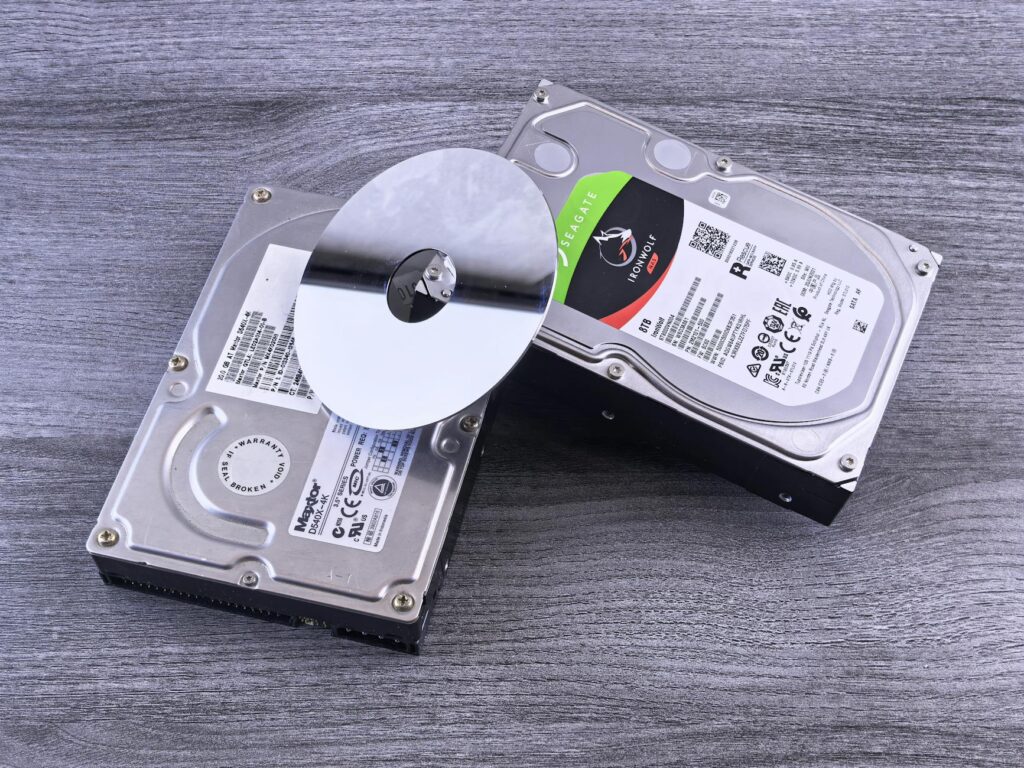
Physical drives come in two types: Hard Disk Drives (HDDs) and Solid State Drives (SSDs). HDDs use spinning magnetic disks. They are cheap, costing around £50 to £55 for 1TB, but they break easily if dropped. SSDs have no moving parts, so they survive the drop off a desk that kills a hard drive, and they are faster too. A 1TB portable SSD costs around £110 to £185 at the moment, with the Samsung T7 near the top of that range.
| Storage Option | Capacity | Upfront Cost | Monthly Cost | 3-Year Total Cost |
|---|---|---|---|---|
| University OneDrive | Up to 100GB | £0.00 | £0.00 | £0.00 |
| Google One | 2TB | £0.00 | £7.99 | £287.64 |
| External HDD | 1TB | £50.99 | £0.00 | £50.99 |
| External SSD | 1TB | £110.56 | £0.00 | £110.56 |
Data Security
Security means protecting your files from theft, hardware failure and accidental deletion. Both storage methods handle these risks differently.
Cloud storage providers use enterprise-grade encryption and store multiple copies of your files across different server locations. If one data centre burns down, your files remain safe elsewhere. The main security risk with cloud storage is account compromise. If someone guesses your password and you lack two-factor authentication, they can delete your entire digital life.
Physical hard drives give you total physical control over your data. Hackers cannot access an SSD that sits disconnected in your desk drawer. However, physical drives are vulnerable to environmental damage and theft. If someone steals your backpack containing your laptop and your backup drive, you lose everything.
Never store your only backup drive in the same laptop bag as your computer.
If you study a subject involving sensitive data, such as medical research or psychology, your university ethics committee might ban you from using commercial cloud storage. In these cases, you must use an encrypted physical drive to comply with data protection laws.
Accessibility: using cloud storage vs hard drives on campus

University life involves moving constantly between halls, lecture theatres and the library. Your storage solution must fit this mobile lifestyle.
Cloud storage excels at accessibility. You can start an essay on your laptop in your room, continue it on a library desktop and read it on your phone on the bus. Any changes sync automatically across all your devices. You never have to remember to pack a cable or carry a physical device.
Set your most important university folders to “Keep on this device” so you can access them during campus Wi-Fi outages.
Physical hard drives demand more effort. You must remember to pack the drive and the correct connection cable. If you leave the drive in your student housing, you cannot access your files during a seminar. Library computers often disable USB ports for security reasons, preventing you from plugging in an external drive.
However, cloud storage completely relies on an internet connection. If you study on a train with poor signal, or if the university network goes down, you lose access to any files not saved locally on your machine. Physical drives work perfectly regardless of your internet connection.
Speed and performance
For most students writing essays or building spreadsheets, speed is rarely an issue. A Word document takes less than a second to save to either a cloud server or a physical drive.
If you study film production, photography, or game design, speed becomes a critical factor. Video files and high-resolution image libraries are massive. Uploading a 50GB video project to Google Drive on a standard university Wi-Fi connection can take hours. Downloading it again on a different computer takes just as long.
Modern external SSDs offer read and write speeds exceeding 1,000 megabytes per second. You can transfer that same 50GB video project to an SSD in under a minute. You can even edit 4K video directly off the external drive without copying the files to your computer’s internal storage.
If you work with large files, a physical SSD is mandatory. Cloud storage simply cannot match the capacity of a direct USB-C connection.
Pros and cons comparison
Side by side, it comes down to this.
Cloud storage syncs itself across your phone, tablet and laptop, survives a stolen bag or a flooded flat, and is often free through your university, which also makes sharing work with course mates trivial. The costs are the obvious ones: it needs a connection, the subscription mounts up if the university isn't paying, and a 20GB video project takes an age to upload.
A physical SSD has no monthly fee, moves video and design files far faster than any upload, works on a train with no signal, and can't be caught in an online breach. Against that, it can be lost, stolen or dropped, you have to carry it and its cable, and nothing syncs: the file on the drive is the only copy unless you make another.
Final Verdict
You do not have to pick just one. The most secure backup strategy uses both methods simultaneously. IT professionals call this the 3-2-1 rule: keep three copies of your data, on two different types of media, with one copy stored off-site.
For the average student writing essays and preparing presentations, cloud storage is the clear winner. It requires zero physical effort, syncs automatically and is free through your institution. Set up OneDrive or Google Drive on day one. You never have to worry about losing an essay.
If you study a creative degree involving large media files, you must buy an external SSD. Cloud storage is too slow for active video editing or managing raw photography files. Buy a 1TB SSD for your daily project work and use the cloud to back up your final exported files.
Cloud storage wins for essay-based subjects due to convenience and automatic syncing. Physical SSDs win for creative subjects requiring fast transfers of massive files.
Whether you are preparing for your first year of university or managing your final year dissertation, secure your data today. Hardware fails, bags get stolen and coffee spills happen. Do not wait for a disaster to test your backup strategy.
Frequently asked questions
Is cloud storage safer than an external hard drive?
Cloud storage protects your files from physical damage, theft and local hardware failure by storing data across multiple secure data centres. External hard drives are vulnerable to being dropped, lost, or stolen, which instantly destroys your only backup. Still, cloud storage carries a slight risk of account hacking, making strong passwords and two-factor authentication essential.
Do universities check what you store on student cloud accounts?
University IT administrators technically have the ability to access files stored on institution-provided Microsoft 365 or Google Workspace accounts. They rarely do this without a specific legal or disciplinary reason. Your account is not entirely private. You should keep personal files, photos and non-academic documents on a separate, privately owned storage drive or personal cloud account.
How long do external hard drives last?
A traditional Hard Disk Drive (HDD) with spinning disks typically lasts three to five years before mechanical wear increases the risk of failure. Solid State Drives (SSDs) have no moving parts and generally last between five and ten years under normal student usage. You should replace your primary backup drive every four years to guarantee your files remain safe.
Can I keep my university cloud storage after I graduate?
Most UK universities close your student IT account, including its cloud storage, a few months after you graduate, and your IT department's pages give the exact date. You will receive warning emails beforehand, but if you ignore them, your files are permanently deleted. You must transfer all important documents to a personal hard drive or personal cloud account before your student access expires.
Jamie writes to people already at uni
When your loan comes in, and what's due before it does. House deposits are the usual one.
You'll also get the At Uni pack as a PDF. Unsubscribe any time.

Ask Alex a question
If this guide didn't cover the thing you came for, ask. If enough people ask the same thing, it becomes a guide.
Read us often? You can add UniSorted as a preferred source on Google.